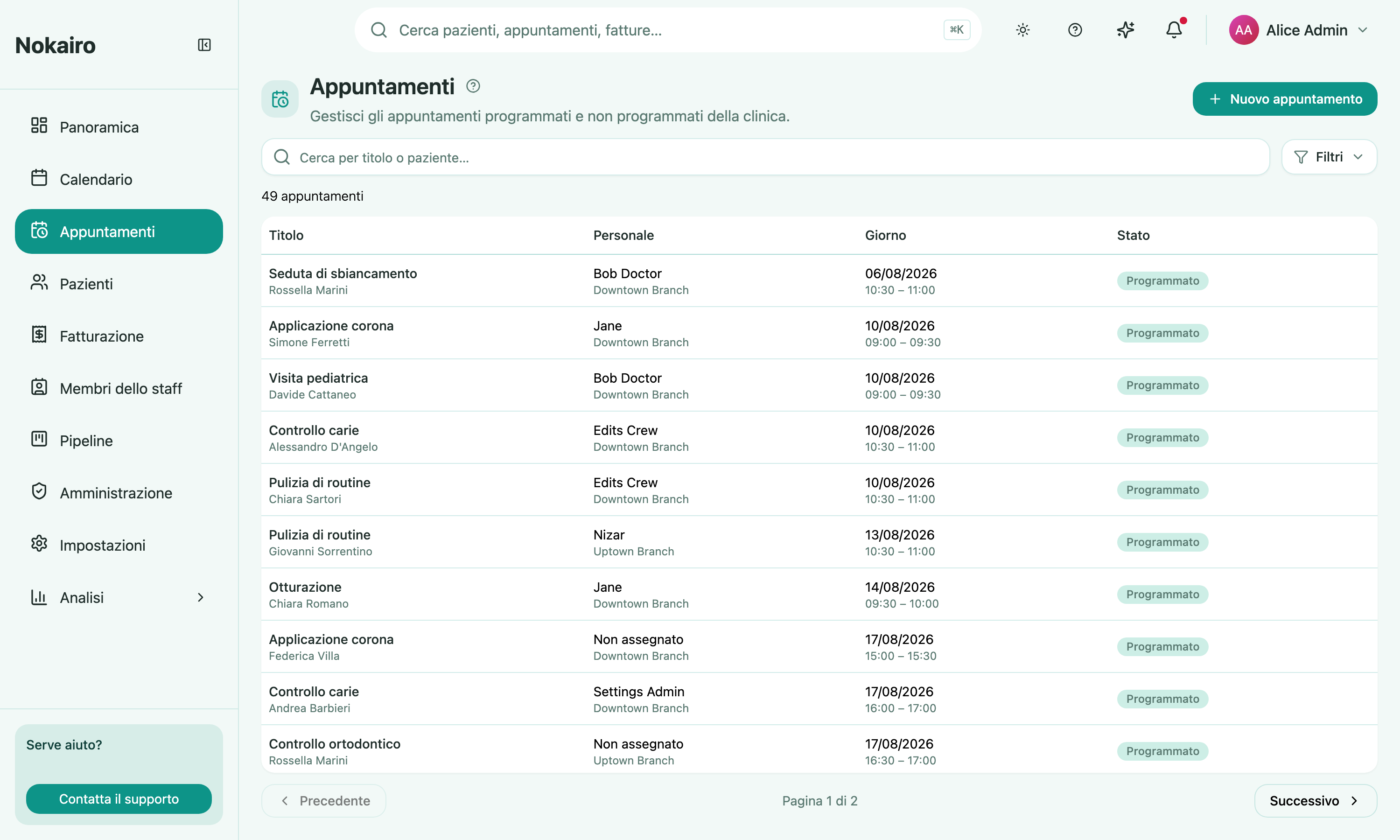
The appointments list is the calendar’s flat counterpart. Where the calendar lays the day out on a time grid, this page gives you a searchable list — useful when you are looking for a particular appointment, or for every appointment matching some condition, rather than for a free slot.
What you can do here
- Search by appointment title or patient name.
- Filter by status, by whether a staff member is assigned, by branch, by staff member, and by a date range.
- Open an appointment to see its full detail and act on it.
- Create an appointment — staff with the right permission see a New appointment button.
The list is paginated and tells you how many appointments match what you have asked for. The filter panel is collapsed until you open it, and shows a count of how many filters are currently narrowing the list.
How the list is ordered
By default the list shows your upcoming appointments with the soonest at the top, so the next thing on the schedule is always first. Appointments that have not been scheduled yet — for example those still waiting on a patient to fill in their details — sit at the end.
Past appointments are hidden from this default view. To bring them back, set a date range in the filters — a From date in the past reveals the appointments in that window, in date order. Searching by title or patient name also looks across every appointment, past ones included, so you can always find a specific appointment by name.
The statuses you can filter by
An appointment is in exactly one of six states: scheduled, confirmed, checked in, completed, cancelled, or no-show. You can select several at once — picking confirmed and checked in shows both. Selecting none shows every status.
Who sees what
The list covers the branches you are assigned to, the same as the calendar. The branch and staff filters offer what is available to you, so a colleague assigned elsewhere working from the same filters will see a different list.