The Overview page is the first thing you see after logging in. It replaces the calendar as your starting point, giving you a quick read on how your clinic’s setup is going and what’s happening today before you head into the rest of Nokairo.
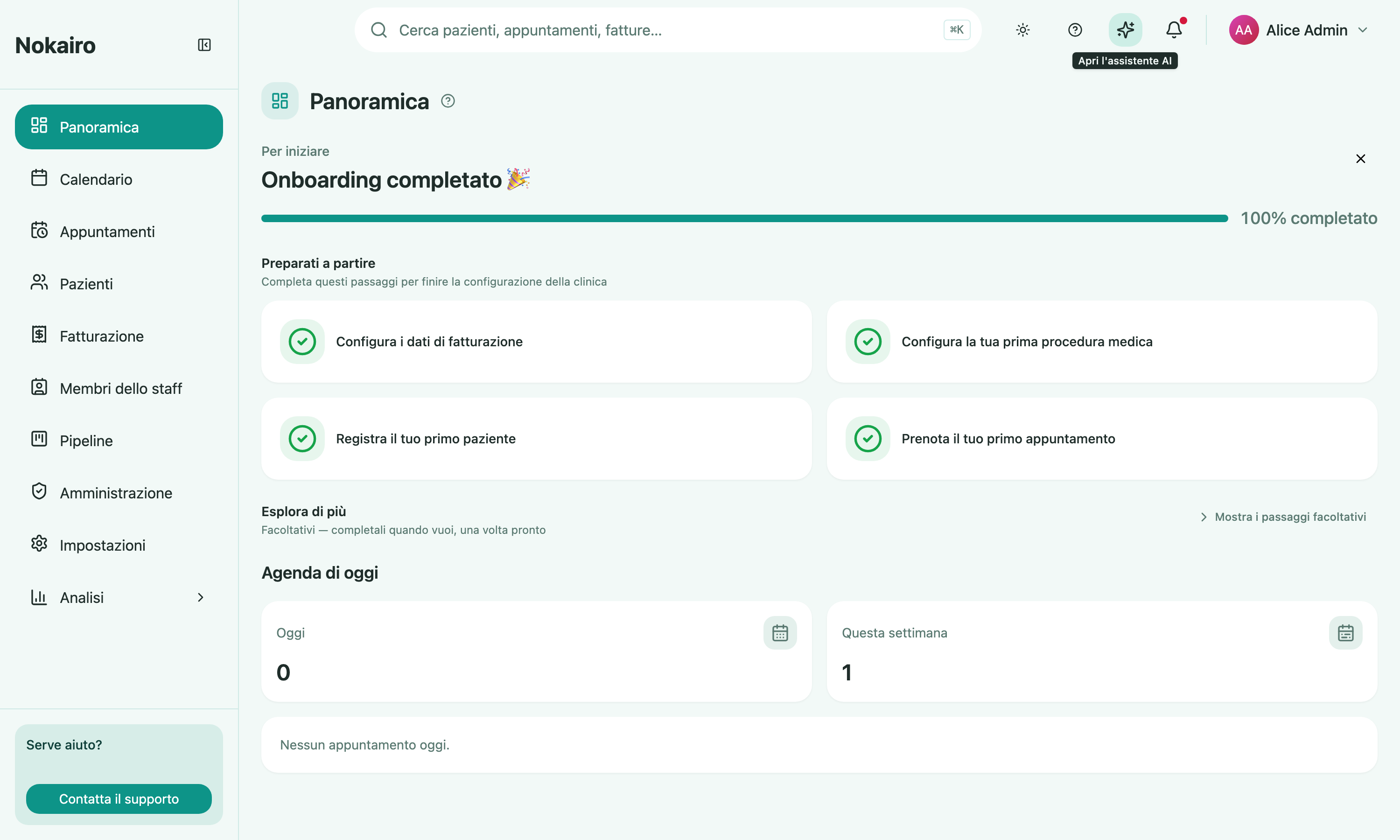
Milestones checklist
At the top of the page, clinic administrators see a checklist that tracks how far along your clinic is in getting set up, split into two parts. Because it tracks your clinic’s setup, it is the same for every administrator and is shown only to them.
Get up and running lists the four steps every clinic needs to start operating, worked one at a time in order: setting up your billing details, configuring your first procedure, creating your first patient, and booking your first appointment. Your progress and the checklist’s completion are measured against just these four.
Explore more gathers the optional steps — inviting a second teammate, uploading your clinic logo, building a questionnaire, sending your first questionnaire, quote and care plan, and issuing your first invoice and payment — grouped into categories. They stay locked until the four required steps are done, then unlock all at once, to work through in any order or skip. This section starts collapsed so the four required steps stay front and centre — expand it whenever you want to explore the optional steps, and that choice is remembered for your whole clinic.
You do not check anything off by hand — each item ticks itself off as you go about your normal work. Once the four required steps are complete, any administrator can dismiss the whole checklist for your clinic; it will not come back.
Your day
Below the checklist, your personal daily agenda lists your own appointments for today, in order from your first to your last. Each line shows the time, the patient, the procedure booked, and where the appointment stands. It only ever shows appointments you are treating — never a colleague’s — and only for the branches you have access to.
Two figures sit alongside it: how many appointments you have today (broken down by procedure) and how many you have across the current week. Click any appointment to open it, or click a figure to jump to the full appointment list filtered to that view. If you have nothing booked today, it simply says so.
Where did the calendar go?
It is still there — just one click away. Look for Calendar in the sidebar.