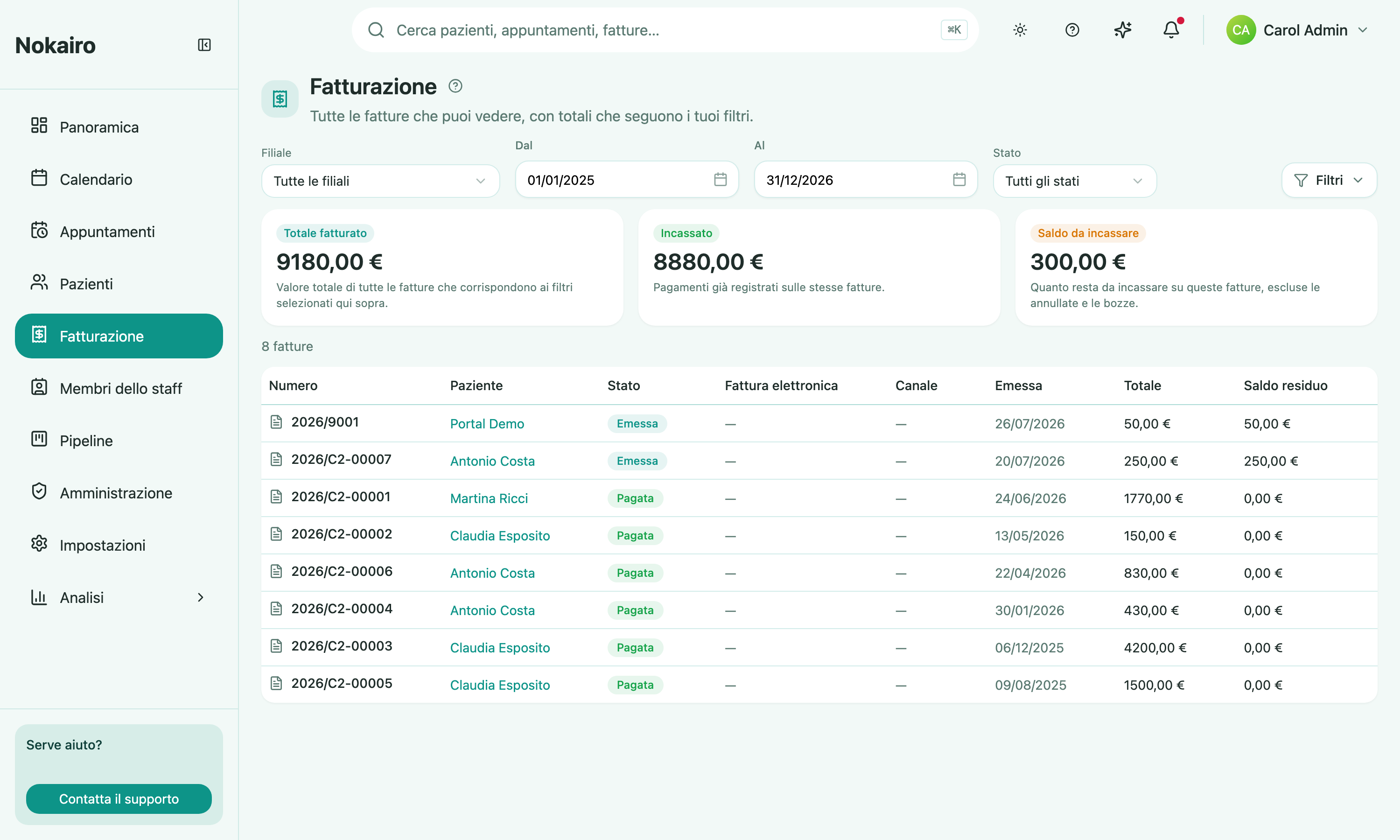
Billing is the invoice list for the whole clinic. Instead of opening patients one at a time, you get every invoice from the branches you have access to in one place, with the money totals for exactly those invoices above it.
What you can do here
- Look at one branch or all of them at once. The branch picker starts on all branches.
- Choose the period. The page opens on the current calendar month, and the From and To dates bound both the totals and the table. The period runs on the issue date, so an invoice enters it the day it is issued.
- Read the three totals — Invoiced total, Collected, and Outstanding balance — for the invoices the table is listing. Under the Draft status filter the first one is titled Draft value instead.
- Filter by invoice status: draft, issued, partially paid, paid, or void (cancelled).
- Find your drafts. A draft has not been issued yet, so it has no issue date and no period can contain it. Pick Draft in the status filter and the page drops the period for you — the dates grey out and you get every draft you can see.
- Filter by fiscal state, behind the Filters button: fattura elettronica status, the fiscal rail an invoice took (SDI, Sistema TS, or unresolved), and the Sistema TS transmission status.
- See what is still owed on each invoice in the Outstanding column: the invoice total minus the payments recorded against it, so a fully settled invoice reads zero. A void one reads zero too, because a cancelled invoice is owed nothing, and so does a draft, because nothing is owed on an invoice that was never issued.
- Open an invoice by clicking its row, which takes you to that invoice on the patient’s record.
The totals and the list always agree
Every control on this page — the branch picker, the From and To dates, the status filter, and the fiscal filters behind the Filters button — narrows the totals and the table together. Change one and both move, so the tiles can never describe a wider set of invoices than the rows underneath them.
- Invoiced total is the total value of every invoice in the table. With no status filter that includes void invoices, which are still on screen; pick a status if you want them out. Drafts are not in it under a period, because they have no issue date — switch the status filter to Draft to see them. Under that filter the tile is titled Draft value, because a draft has no invoice number, no issue date and no place in the fiscal numbering: nothing it counts has been invoiced.
- Collected is the payments already recorded against those same invoices.
- Outstanding balance is what is still owed on those invoices. Only issued invoices count here: a void one and a draft both read zero, even though their amounts are still in the Invoiced total — cancelling an invoice cancels the debt, and a draft has not been issued, so nothing is owed on it yet. That is why the three tiles do not subtract into one another whenever a void invoice or a draft is in view.
Paging through the table does not change the tiles: they cover the whole filtered set, not just the page in front of you.
What this page will not do
Billing finds invoices; it does not create or change them. Building a draft, adding lines, issuing, and recording a payment all happen on the invoice inside the patient’s record. How a branch transmits — its e-invoicing connection and its Sistema TS credentials — is set per branch under Administration, because those settings carry a legal identity that belongs to the single location.
Who sees what
The list covers the branches you are assigned to, and the totals cover exactly the same invoices — an invoice from a branch you cannot see appears in neither. A colleague assigned to a different branch reads different numbers from the same page.