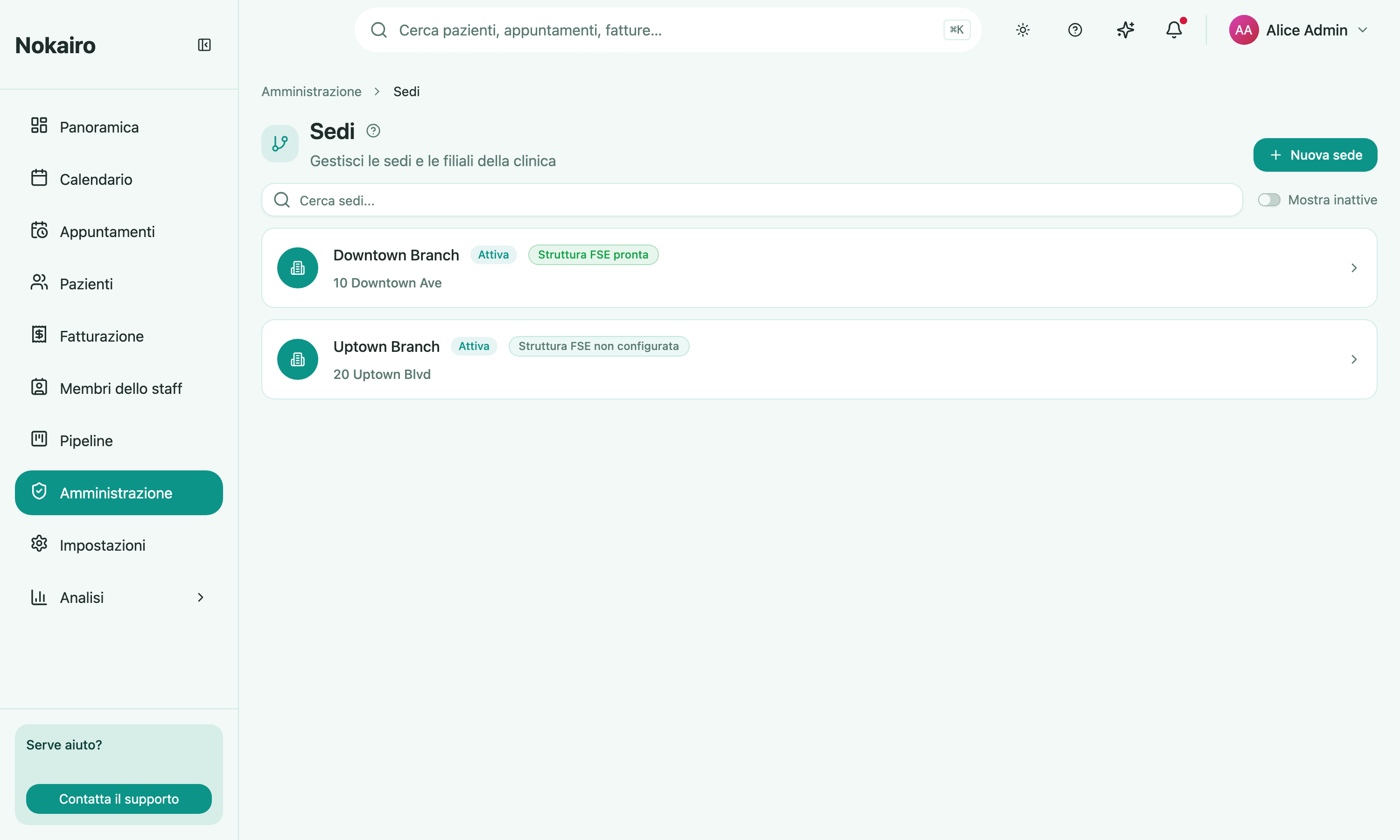
A branch is a physical location of the clinic. Almost everything in Nokairo hangs off branches: which calendar you see, which price list applies, which staff cover which site, and which fiscal identity issues an invoice. This screen lists the clinic’s branches; opening one shows its detail page.
What you can do here
- Create a branch and record its name, address, phone number, and email.
- Search the list, and toggle inactive branches into view.
- Open a branch to see its summary and the staff assigned to it.
- Edit a branch, or deactivate one that is no longer in use.
- Assign staff to the branch, invite a new colleague straight into it, edit a member’s branch roles, or remove them from it.
- Set the branch’s operating hours — the weekly windows when the location is open.
The branch detail page
Alongside the branch’s name and status you may see an FSE readiness badge, and links to two further screens: FSE structure identity and FSE documents. Those links appear only for staff whose access includes them.
Operating hours
Each branch has a weekly opening pattern. For every weekday you can add one or more intervals — for example an 8:00–13:00 morning and a 14:00–20:00 afternoon — or leave a day closed. When someone books an appointment outside the branch’s open hours, the booker is warned before the appointment is saved; the warning can be overridden when a genuine out-of-hours booking is needed. Operating hours combine with each staff member’s own working hours: a time slot is only offered when the branch is open and the staff member works then. A booking buffer (0–60 minutes) lets the next appointment start that many minutes before the previous one ends, so back-to-back visits can overlap slightly; leave it at 0 to disable it. Operating hours are opened from the Operating hours button on the branch page. Editing them needs permission to update the branch; everyone who can see the branch can read them.
Deactivating a branch
Deactivation is not reversible from this screen — the confirmation says so plainly. A deactivated branch stays in the list behind the “show inactive” toggle rather than disappearing.
Who sees what
Staff see the branches they are assigned to. A colleague assigned elsewhere sees a different list from the same clinic.