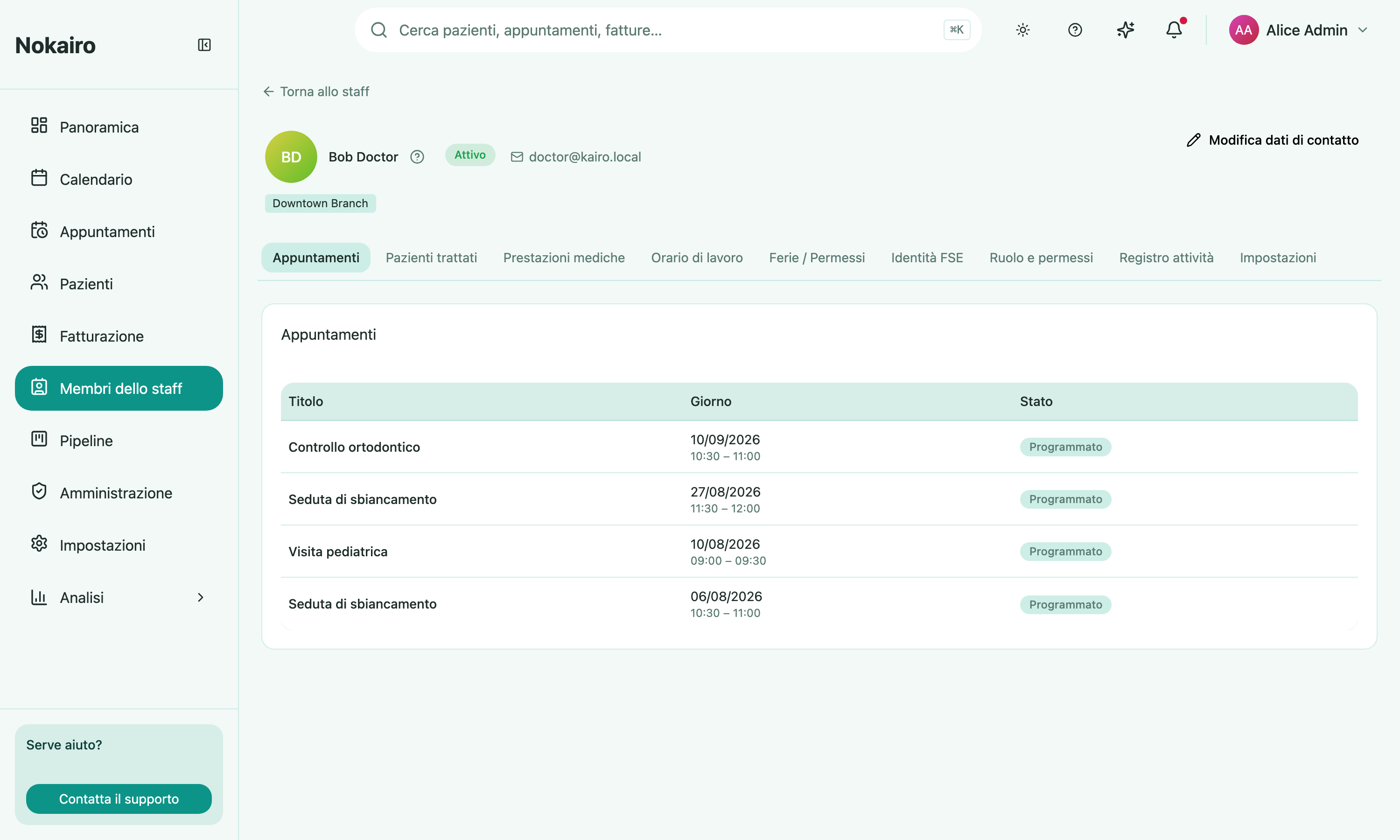
The staff profile is the single place to see everything about one colleague: their name and contact details, their profile picture, the branches they belong to, their role and permissions, the medical procedures they’re assigned to, their working hours and time off, their FSE practitioner identity, the patients they’ve treated, their appointments, and a log of their platform activity. Their name, profile picture, status, contact details, and branches always stay visible at the top; everything else is organized into tabs — Appointments, Patients Treated, Medical Procedures, Working Hours, Vacation / Time Off, FSE Identity, Roles & Permissions, Action Log, and Settings — so you only load the section you need. It opens on Appointments. It’s reached from the staff list — by clicking a colleague’s row — or from your own account menu for your own profile.
What you can do here
- See a colleague’s contact details — email, phone number, and postal address — alongside their profile picture, current status, and every branch they’re assigned to (their two-factor state is shown in the Settings tab).
- Set or replace their profile picture (or your own) by clicking the picture at the top of the profile — it then appears everywhere they’re shown, including the top bar and the staff list. Anyone can set their own picture from Settings; managing another colleague’s needs the update-staff permission.
- See every role they currently hold, labeled by branch or as clinic-wide, together with the combined set of permissions those roles grant. If you hold the role-management permission, a “Manage roles” action sits next to each branch group so you can grant or remove that colleague’s roles at that branch without leaving the profile.
- See the medical procedures they’re currently marked as an assigned candidate performer for, each listed with its type and duration. If you can manage the procedure catalogue, clicking a procedure opens that procedure’s own page in the Medical Procedures administration area, where it’s edited.
- See and edit their recurring weekly working hours and bookability, per branch, in the Working Hours tab, and record their time off in the Vacation / Time Off tab — both when you’re permissioned to manage staff availability.
- Capture or update their FSE practitioner identity in the FSE Identity tab, for a colleague who has accepted their invitation.
- Browse their appointments, furthest-out first then most recent, with no hard limit on how far back you can page.
- See the distinct patients they’ve treated, listed like the Patients page — name, branch, contact details, and tags — with each row opening that patient’s own record (subject to your own separate patient-record permissions).
- See their platform action log — a paginated record of that one colleague’s own actions within your clinic, each entry showing what happened, when, and its outcome.
- Always see your own profile in full, from the account menu, no matter what else you’re permissioned to do.
Reaching a profile
Open the Staff Members list and click anywhere on a colleague’s row, or their name, to open the profile you’re permissioned to view. To see your own profile at any time, use the “My Profile” entry in your account menu in the top bar.
The action log
The Action Log tab shows that one colleague’s own platform activity, scoped strictly to your clinic — nothing from any other staff member, no activity in another clinic, and never anything from Kairo’s own operator/support access. You can narrow it to a single kind of action — grouped by what it concerns, such as patients, appointments, quotes, invoices, procedures, or staff — and to a from/to date range, to find a specific event faster; the filters only narrow the entries already in view and never widen them past that one colleague’s activity in your clinic. It carries a standing note: it’s a best-effort record, so the absence of a logged entry is never proof an action didn’t happen.
If this tab ever shows a calm “not yet available” note instead, it means the underlying capability isn’t active in your environment yet — every other part of the profile still works normally in that case, and nothing is required from you.
Who can see what
Seeing a colleague’s profile follows the same branch and clinic permission model as the rest of staff management: a clinic-wide grant of the “View Staff Profile” permission opens any colleague’s profile in your clinic, while a branch-scoped grant only opens colleagues assigned to one of your granted branches. A profile is never visible across clinics. Once you’re let in, you see the core picture, but a couple of tabs appear only when you hold their own permission: the FSE Identity tab needs the FSE credential-reading permission, and the Settings tab needs a staff-management permission. A viewer without those simply doesn’t see those tabs.
Managing a colleague
Per-person actions are split between the header at the top of the profile and the Settings tab, shown according to your permissions and the colleague’s status:
- Edit contact details (header) — change a colleague’s name, phone number, and postal address without leaving the page (needs the update-staff permission).
- Resend or Revoke (header) — offered when the colleague’s invitation is still pending or has expired.
- Reset two-factor (Settings tab) — offered for an accepted colleague other than yourself who currently has two-factor enabled; it signs them out and forces a fresh authenticator enrolment at their next sign-in. The Settings tab is also where their current two-factor state is shown.
- Deactivate (Settings tab) — offered for an accepted colleague other than yourself, and hidden on your own profile.
The Working Hours, Vacation / Time Off, and FSE Identity tabs are edited in place — a colleague’s weekly hours and bookability in the Working Hours tab, their time off in the Vacation / Time Off tab, and their FSE practitioner identity in the FSE Identity tab, with no separate page to visit. For a colleague whose invitation is still pending, those tabs show a calm “not yet available” note until they accept.